Setting Up an SSH Tunnel for Windows RDP via PSU Linux Servers
What this does
This is a worked, real-world example of SSH tunneling: reaching your home desktop’s Remote Desktop (RDP) service from elsewhere, even though your home machine isn’t directly reachable from the internet. It chains two tunnels that meet at a common port on a PSU server:
- a reverse tunnel (
ssh -R), which your home PC pushes outward to the PSU server — opening a listener there that leads back to your home machine’s RDP, and - a forward tunnel (
ssh -L), which your laptop opens locally and which exits from the PSU server toward that same port.
The trick to keeping -L and -R straight is to always ask: which machine opens the listening port? (-L = your local machine; -R = the remote server.) Both halves must be running at once, and the middle port on the PSU server must match between them.
Before Setting Up
Prior to starting, validate that your Remote PC or Laptop is able to Remote Desktop to your Home PC while they are both on the same network.
Getting Set Up
To set up the tunnel, make sure that you are using an SSH key to connect to the schools servers without needing to enter a password.
While we will use a specific example port throughout this document, do not use that port number. Instead, use a port number that is unique to you, and that you will remember. For example, if your PSU ID number is 123456789, you might use port 56789. If you are using a port number that is already in use, you will get an error when you try to connect, and you’ll need to pick a different port number.
Next, on your home PC, create a batch file (*.bat). Inside, enter the following line:
$ ssh -NR 1222:localhost:3389 linux.cs.pdx.edu -l <mcecsusername>
This creates a tunnel from port 1222 on the school’s servers to port 3389 on your home PC.
Where <mcecsusername> is the username you use to log in to the college’s servers. Save and close the file.
Next, on your laptop or remote machine, create another batch file (*.bat). Inside, enter the following line:
$ ssh -NL 1422:localhost:1222 linux.cs.pdx.edu -l <mcecsusername>
Where <mcecsusername> is the username you use to log in to the school’s servers. Save and close the file.
This creates a tunnel from port 1422 on the laptop to port 1222 on the school’s servers. Note the common port from these two commands is 1222, and exists on the school’s servers. It is important for these to match!
Next, navigate to the following folder: C:\Users\%USERNAME%\.ssh and edit the config file at this location, if you do not have one, create one at this time.
Add the following lines to your config file, this will help to ensure that the connection stays live:
Host *
    ServerAliveInterval 30
    ServerAliveCountMax 3
Using the Tunnel
When you leave to go to school, double-click or execute the batch file you created on your home or target PC. This will launch a terminal window on this PC. Closing the window will close the connection, so leave this terminal open.
When you are ready to connect from your remote PC, double-click or execute the batch file you created on your remote PC. As before, a terminal window will launch, closing this window will close the connection.
Finally, launch Remote Desktop, and set the target Computer to: localhost:1422, and click Connect:
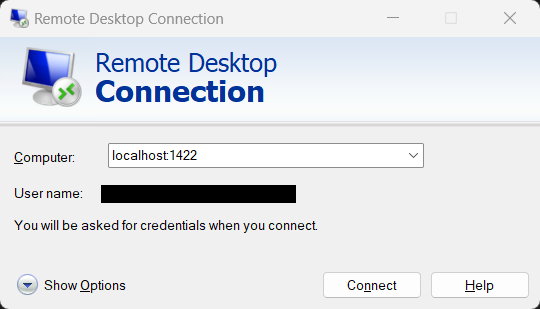
If everything has been set up, and you were able to remote over local network previously, you should connect at this time.
Common Issues:
Connection Spins and then fails to connect:
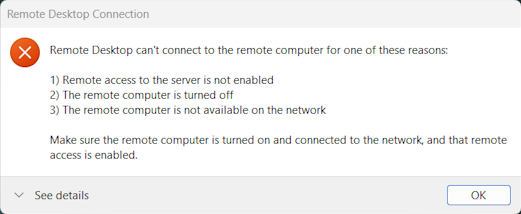
This error may indicate that there is an issue with the Tunnel on the device you are trying to remote from. Validate that you can connect to the schools servers with the same [mcecsusername] via SSH from the device you are trying to remote from, and that your connection scripts have the correct ports for their locations as listed above.
Connection begins, and then immediately errors out:
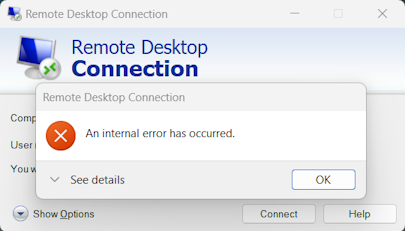
This error may indicate that there is an issue with the Tunnel on the device you are trying to remote to. Validate that you can connect to the schools servers with the same [mcecsusername] via SSH from the device that you are trying to remote to, and that your connection scripts have the correct ports for their locations as listed above.
Repeated Credential Failure:
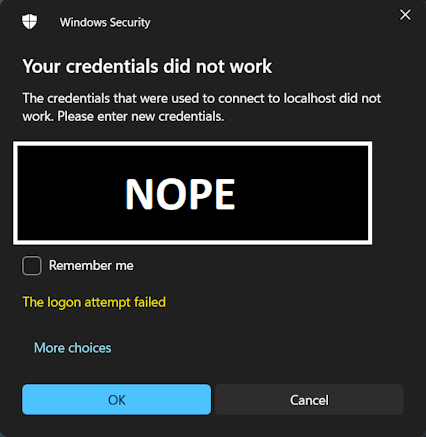
Double check your windows credentials via password, and re-validate that you can connect via remote desktop and password while on a local network with the target device.
Additional Considerations
I am unsure how remote desktop works with Mac systems. However, this guide may work for Mac with some modifications. Namely:
- Replace the use of batch files (*.bat) with a bash or shell script (*.sh)
- Mac Remote Desktop appears to use port number
5900, so you may need to replace the port number3389in the first step with port number5900or other appropriate port. - The location of your
C:\Users\%USERNAME%\.ssh\configfile will likely be at:~/.ssh/config
Key takeaways
- The setup chains a reverse tunnel (
-R, home PC → PSU server, exposing your RDP at a shared port on the server) and a forward tunnel (-L, laptop → PSU server) that meet at that same middle port — it must match on both sides. -Nmeans “no remote command, just hold the tunnel.” Both scripts must stay running; closing either terminal window drops that half of the path.- It relies on key-based SSH login to the PSU server, so the unattended tunnels never stop to prompt for a password.
ServerAliveInterval 30/ServerAliveCountMax 3in~/.ssh/configkeep an idle tunnel from being silently dropped.- Choose a unique high port for your tunnel so you don’t collide with other users on the shared server; on macOS, use a
.shscript instead of a.batand the appropriate remote-desktop port (often5900).
References
ssh(1)— the-L,-R, and-Noptions. https://man.openbsd.org/ssh.1- OpenSSH port-forwarding / tunneling overview. https://www.ssh.com/academy/ssh/tunneling/example
- Microsoft — Remote Desktop (RDP) overview. https://learn.microsoft.com/en-us/windows-server/remote/remote-desktop-services/clients/remote-desktop-clients
Related course pages: Software Configuration · Introduction to Networking
🛠️ Maintenance note: the port numbers here (
1222,1422,3389) are examples — pick your own to avoid clashes on the shared server. The PSU host (linux.cs.pdx.edu/ada) and the Windows batch-file workflow can change; on current Windows, Windows Terminal or WSL may be cleaner than.batfiles. Verify the screenshots against the current Remote Desktop client each term.